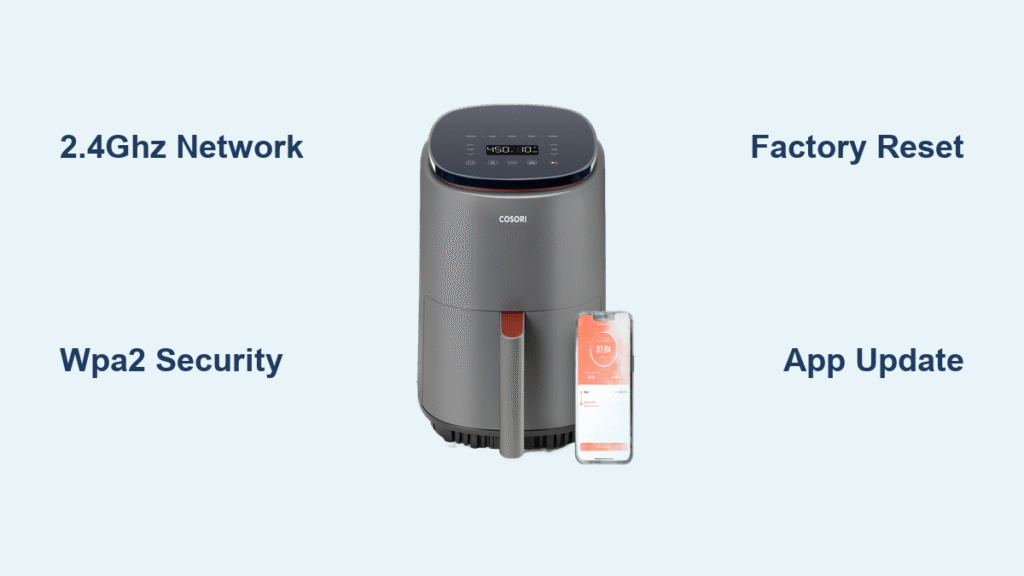
Your Cosori air fryer refuses to connect to WiFi, leaving you staring at error messages instead of controlling your cooking from the couch. This frustrating issue affects countless smart air fryer owners who suddenly lose access to favorite recipes, remote monitoring, and scheduling features. The good news? Most WiFi connectivity problems with Cosori air fryers have straightforward solutions you can implement immediately—no technical expertise required.
Whether you’re facing “device offline” alerts, failed setup attempts that stall at 50%, or constant disconnections during cooking sessions, this guide delivers proven fixes organized from simplest to most advanced. You’ll restore your smart cooking capabilities without waiting for customer support or making unnecessary returns.
Verify Your Network Compatibility First
Confirm You’re Using 2.4GHz WiFi Band
Your Cosori air fryer will never connect if your router only broadcasts 5GHz signals. Most modern dual-band routers combine both frequencies under one network name, tricking your air fryer into attempting an incompatible connection. Check your network name—does it end with “5G” or “5GHz”? If so, that’s your problem.
Create a test: stand next to your air fryer with your phone and check WiFi signal strength. If you have fewer than two bars, move closer to your router during setup. Weak signals cause most failed pairing attempts, especially in kitchens far from the router. Disconnect other bandwidth-heavy devices temporarily to give your air fryer priority during setup.
Check Router and App Requirements
Open your router’s admin page by typing 192.168.1.1 into a browser. Look for the wireless settings section to confirm your 2.4GHz network is active and broadcasting. Some routers automatically disable 2.4GHz when they detect newer devices—this setting must be manually enabled.
Simultaneously, check the VeSync app version on your phone. Outdated apps frequently cause handshake failures with the air fryer’s firmware. Tap the app store’s “Updates” tab and verify VeSync shows “Open” rather than “Update.” If updates exist, install them immediately before proceeding.
Correct Your Router Configuration

Separate 2.4GHz and 5GHz Networks
Most connection failures happen because your phone automatically jumps to 5GHz during the pairing process. Access your router settings and rename your bands distinctly—use “KitchenWiFi” for 2.4GHz and “KitchenWiFi_5G” for the faster band. This prevents automatic switching that breaks the air fryer setup.
During initial pairing, disable the 5GHz band completely. Find the wireless settings tab, toggle off 5GHz broadcasting, and save changes. This forces all devices to use 2.4GHz temporarily. Once your air fryer connects successfully, you can re-enable 5GHz for other devices.
Adjust Security Protocols for Compatibility
WPA3 security, while more secure, often blocks smart home devices like your Cosori air fryer. Navigate to “Wireless Security” in your router settings and change the protocol to WPA2-PSK (AES). This older but compatible standard resolves most authentication failures during setup.
Critical step: Disable WiFi Protected Setup (WPS) in your router’s advanced settings. Though designed for easy pairing, WPS frequently conflicts with IoT device connections. Look for WPS options under wireless settings and toggle them off before attempting another pairing.
Reset Both Devices Properly
Perform Correct Air Fryer Factory Reset
Find the tiny reset button near your air fryer’s power cord—usually requiring a paperclip to press. Hold it for exactly 10 seconds until the display flashes or beeps. This clears all network credentials while preserving cooking presets.
Pro tip: After resetting, unplug the unit for 30 seconds before restarting. This complete power cycle clears residual memory in the WiFi module that often causes persistent connection issues. Many users skip this step and wonder why resets seem ineffective.
Clear App Data Completely
Android users must clear both cache and data: Go to Settings > Apps > VeSync > Storage > tap “Clear Cache” then “Clear Data.” This removes corrupted authentication tokens that block device recognition.
iPhone users need to delete and reinstall VeSync entirely. Simply closing the app won’t clear stored connection data. Don’t worry—your account and recipes sync to the cloud, so nothing gets lost during reinstallation.
Solve Advanced Connection Problems
Optimize WiFi Channel Selection
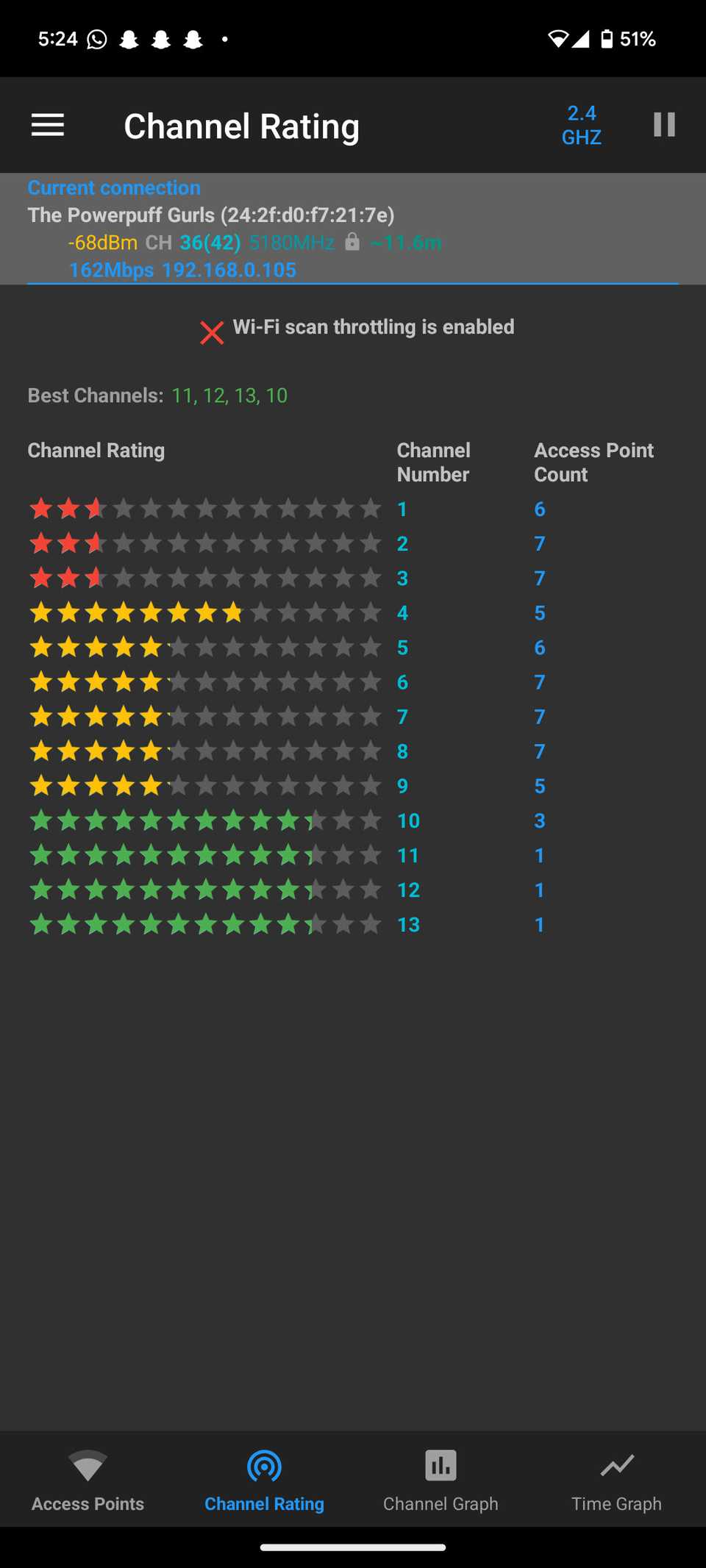
Router interference from neighboring networks often disrupts smart devices. Use a free WiFi analyzer app on your phone to identify congested channels in your area. Then access router settings and manually set your 2.4GHz channel to 1, 6, or 11—the only non-overlapping channels that prevent signal interference.
Avoid channels above 11 if you live near airports or military bases due to potential radar interference. In crowded apartment buildings, channel 1 typically has the least congestion for IoT devices.
Bypass Router Security Restrictions
MAC address filtering often silently blocks new devices. In router settings, find “Access Control” or “MAC Filtering” and either disable it temporarily or add your air fryer’s MAC address. This appears on the display during pairing attempts—write it down before starting setup.
Create a dedicated IoT network for your smart kitchen appliances. Most modern routers allow guest networks with separate 2.4GHz broadcasting. This isolates your air fryer from main network security protocols that might interfere with connectivity.
Avoid These Common Setup Mistakes
Respect Pairing Mode Timing
Rushing the setup process causes most failed connections. After pressing the WiFi button on your air fryer, watch for the flashing symbol—then wait precisely 60 seconds before opening the VeSync app. The device needs this initialization time to broadcast its network properly.
Expert insight: If pairing fails, wait 5 full minutes before retrying. The air fryer’s WiFi module requires cooldown time between attempts to prevent memory conflicts that block connections.
Never Use Phone Hotspot During Setup
Your phone’s mobile hotspot cannot substitute for a proper router connection. The air fryer requires a stable 2.4GHz WiFi network—not cellular data—to establish communication. Ensure your phone disconnects from cellular data and connects to your home 2.4GHz network before starting setup.
Identify Hardware Failure Signs

Recognize WiFi Module Failure Symptoms
Persistent disconnections after successful pairing indicate hardware problems. Test by connecting other smart devices to the same network location—if they work fine but your air fryer drops connection, the internal WiFi module likely needs replacement.
Contact Cosori support immediately if you notice:
– WiFi symbol never appears during pairing attempts
– Device connects briefly then drops repeatedly without pattern
– No networks appear when scanning from the air fryer
– Unit becomes unusually hot during connection attempts
Navigate Warranty Coverage Correctly
WiFi connectivity issues are covered under standard warranty for devices under one year old. When contacting support, provide detailed documentation of your troubleshooting steps—include screenshots of error messages and router settings. Support teams prioritize cases with thorough diagnostic information.
Prevent Future Connection Problems
Establish Network Maintenance Routine
Restart your router monthly to clear memory leaks affecting IoT devices. Schedule automatic reboots during 2-4 AM when nobody uses the network. Most modern routers allow this in the administration settings under “System Tools.”
Update router firmware quarterly by checking your manufacturer’s website. Firmware patches frequently improve compatibility with smart home devices like your Cosori air fryer. Older router firmware often causes unexpected connectivity issues with newer appliances.
Optimize Signal Strength Strategically
Position your air fryer within 30 feet of your router with minimal obstructions. Metal objects like refrigerators or microwaves cause significant signal degradation—maintain at least 6 feet of separation from large appliances. Consider a WiFi extender if your kitchen has poor coverage, ensuring it broadcasts a dedicated 2.4GHz signal.
Quick Reference Troubleshooting Checklist
Before contacting support, verify these critical points:
– [ ] 2.4GHz network actively broadcasting with distinct name
– [ ] Air fryer in proper pairing mode (WiFi symbol flashing steadily)
– [ ] VeSync app updated to latest version available
– [ ] Phone connected to same 2.4GHz network—not cellular data
– [ ] Router security set to WPA2-PSK (AES), not WPA3
– [ ] MAC filtering disabled or air fryer MAC address added
– [ ] Factory reset performed with full power cycle
Final tip: Document each setup attempt with screenshots—this creates a troubleshooting timeline that reveals patterns in connection failures. Most WiFi issues resolve within 15 minutes using this systematic approach, saving you from unnecessary service calls or returns. Your smart air fryer’s connectivity problems have solutions; you just needed the right roadmap to find them.