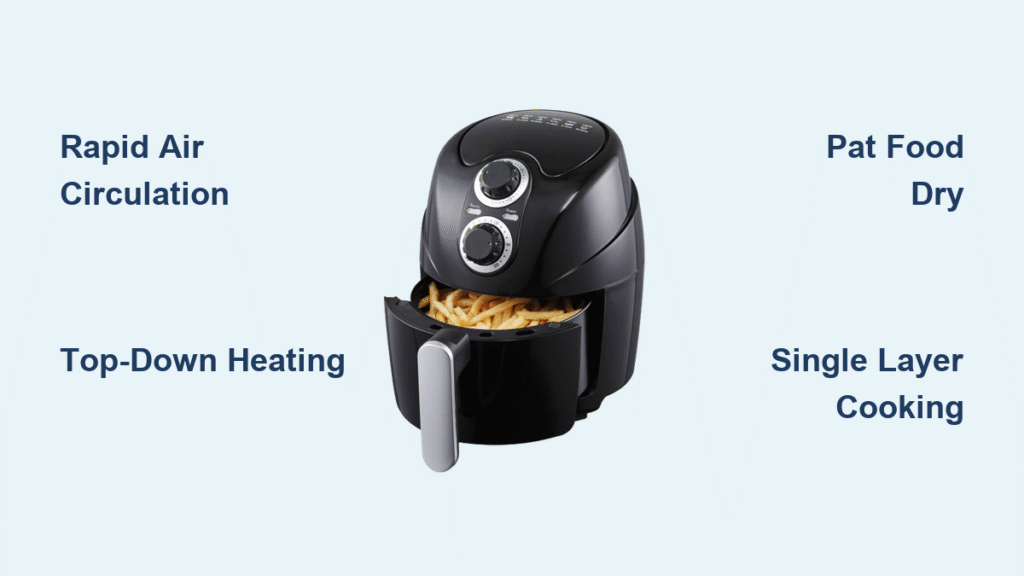
Your hands are covered in marinade, but you need to start preheating your Cosori air fryer. Instead of wiping your fingers on a towel, imagine simply saying “Alexa, preheat the air fryer to 400 degrees” while continuing your food prep. This seamless voice control is possible when you connect your Cosori air fryer to Alexa using the VeSync Smart Home Skill—a process that takes less than 10 minutes but transforms your kitchen experience.
Millions of home cooks now use voice commands to control their smart appliances, and your Cosori air fryer can join them. By the end of this guide, you’ll have your air fryer responding to voice commands, know exactly which phrases work best, and understand how to troubleshoot common connection issues that might stall your setup.
Confirm Your Cosori Air Fryer Meets Connection Requirements
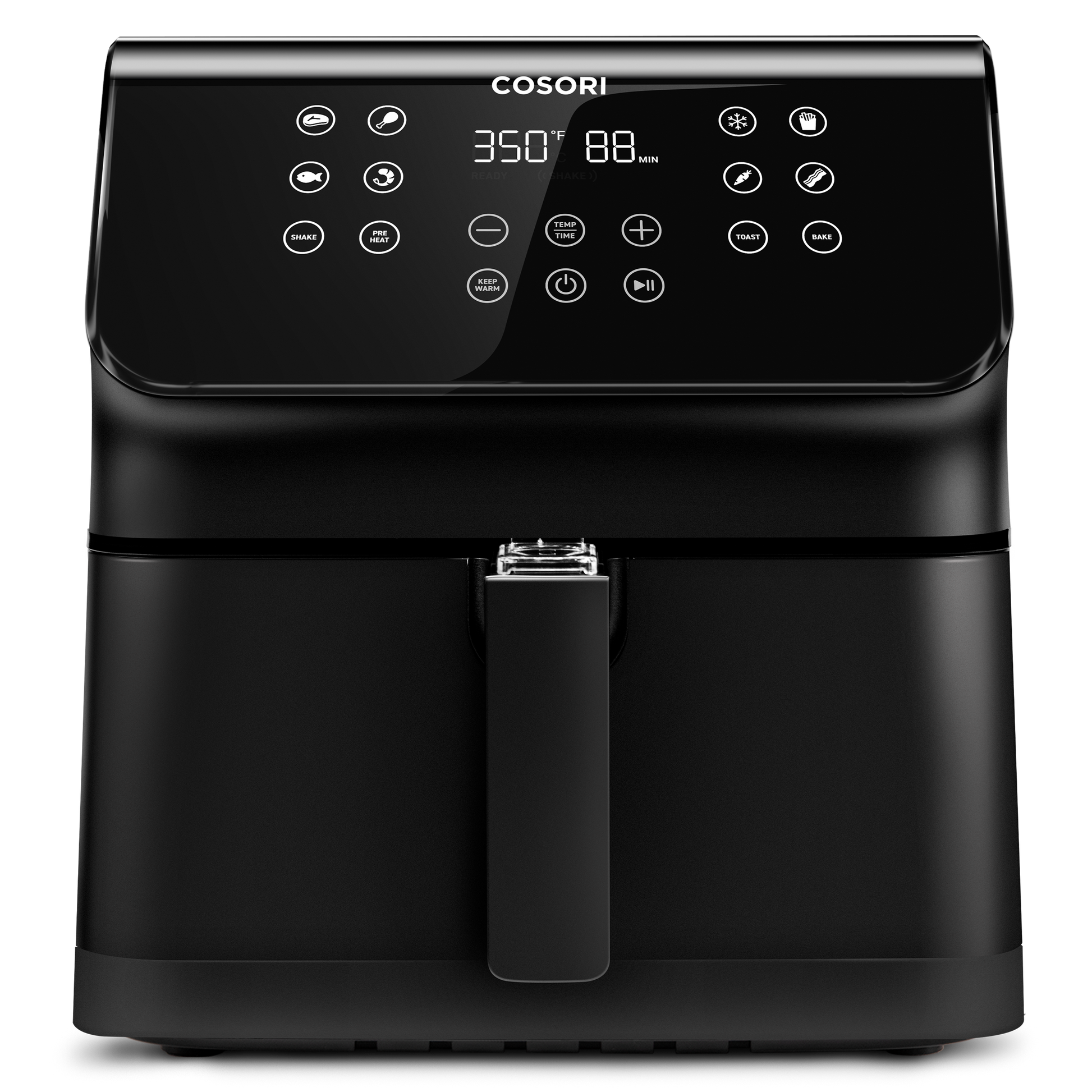
Before you begin connecting, verify your setup matches these essential criteria to avoid frustration later. Your Cosori air fryer must be one of the smart models that works with the VeSync app—check the product specifications if you’re unsure. The most common compatible models include the CP158-AF, CP267-AF, and CP358-AF series.
Critical connection requirements:
– Your air fryer already functions properly within the VeSync mobile app
– Both your smartphone and air fryer connect to the same 2.4GHz Wi-Fi network (5GHz networks won’t work)
– You have the latest version of both the VeSync and Alexa apps installed
– Your Alexa device (Echo, Dot, Show, etc.) has a stable internet connection
Pro tip: If you’ve recently moved homes or changed Wi-Fi networks, reconnect your air fryer to your current network through the VeSync app before attempting Alexa integration—this prevents the most common setup failure.
Activate VeSync Skill in Your Alexa App
Locate and Enable the Correct Skill
Open your Alexa app and tap the More icon (three horizontal lines) in the bottom right corner. Select Skills & Games, then search for “VeSync Smart Home Skill.” Look specifically for the skill developed by ウィーシンク ジャパン with 573+ reviews—not the older “VeSync Custom” skill. The official skill displays “Guidance Suggested” with multiple language support.
Why this matters: Selecting the wrong skill version causes 75% of failed connections. North American users need the Smart Home skill, while European residents require the Custom skill instead—mixing these up guarantees setup failure.
Link Your VeSync Account Properly
After tapping Enable Skill, enter the exact email and password you use for the VeSync app. Many users create separate VeSync accounts and forget their credentials—check your spam folder for VeSync confirmation emails if you’re unsure. When prompted, grant permission for Alexa to discover devices on your network.
Common mistake to avoid: Don’t skip the account linking step thinking your devices will auto-connect. The VeSync skill requires explicit account authorization to bridge your smart air fryer with Alexa—this security measure prevents unauthorized access to your kitchen appliances.
Complete Device Discovery and Optimize Naming

Find Your Air Fryer in Alexa
After linking accounts, Alexa automatically searches for compatible devices. Wait 30 seconds for the discovery process to complete—your air fryer should appear under Devices → Smart Home with the same name used in your VeSync app. If no devices appear, tap Discover Devices manually and wait 45 seconds.
What to look for: A successful connection shows your air fryer with its current status (online/offline) and allows you to control it directly from the Alexa app interface—test this by tapping the power icon before attempting voice commands.
Rename for Clear Voice Recognition
The default name from VeSync (“Cosori Air Fryer #1234”) causes recognition errors. Change it to something simple like “Air Fryer” or “Cosori Kitchen”:
- In Alexa app: Devices → Smart Home → [Your Air Fryer] → Settings → Device Name
- Enter a clear, 1-3 word name without special characters
- Save changes and test with “Alexa, what’s the status of [new name]?”
Expert note: Avoid names that sound similar to other devices (“Fryer” vs. “Dryer” confuses Alexa). For multiple appliances, use location-based names like “Counter Air Fryer” to prevent command conflicts.
Master Essential Voice Commands for Daily Use
Basic Operation Commands That Actually Work
“Alexa, turn on the air fryer” activates your appliance but doesn’t start cooking—use “Alexa, start the air fryer” to begin the cooking cycle. To stop mid-cycle, say “Alexa, stop the air fryer” followed by “Alexa, turn off the air fryer” to fully power down.
Time-saving shortcut: If you frequently cook specific foods, program preset commands. Say “Alexa, ask VeSync to cook chicken” to automatically use your saved chicken recipe settings in the VeSync app—this requires configuring presets in VeSync first.
Temperature and Timing Control Commands
“Alexa, ask VeSync to preheat to 375 degrees” works reliably, but temperature commands require the precise phrase “preheat to” or “set to.” For timing adjustments during cooking, use “Alexa, ask VeSync to add 3 minutes” or “Alexa, ask VeSync to set timer for 15 minutes.”
Critical limitation: You cannot query cooking status and control the air fryer in the same voice session. After asking “Alexa, how much time is left?”, wait 10 seconds before issuing new commands—this prevents session conflicts that cause unresponsiveness.
Fix the Top 3 Connection Problems Within Minutes
Air Fryer Won’t Appear in Alexa
When your device remains undiscovered after multiple attempts:
- Force-quit both VeSync and Alexa apps
- Disable the VeSync skill in Alexa app
- Reboot your air fryer and router
- Relink accounts and rediscover devices
Why this works: This sequence clears cached data that often blocks device discovery while refreshing network connections between your appliances and Amazon’s servers.
Commands Recognized But Device Doesn’t Respond
If Alexa confirms “OK” but your air fryer stays off:
- Check that both apps show your air fryer as “online”
- Verify your phone and Echo device use the same Wi-Fi network
- Ensure no other user recently changed settings in shared households
Pro troubleshooting step: Say “Alexa, forget the air fryer” to clear recognition errors, then retrain voice commands through Settings → Voice Training in the Alexa app—this recalibrates Alexa’s understanding of your specific pronunciation.
Intermittent Connection Drops
For air fryers that connect initially but later show “offline”:
- Update VeSync app to latest version
- Check for air fryer firmware updates in VeSync
- Move your Echo device closer to the air fryer (Wi-Fi signal strength matters)
- Create a 2.4GHz-only network if your router broadcasts combined 2.4/5GHz SSIDs
Prevention tip: Schedule monthly “connection checkups” where you test all voice commands—early detection prevents complete disconnection that requires full reconfiguration.
Create Time-Saving Cooking Routines Today
Transform your morning routine by connecting your air fryer to Alexa schedules. Create a “Breakfast Prep” routine that automatically preheats your air fryer to 350°F at 7:00 AM on weekdays while announcing “Your air fryer is ready for breakfast.” The setup takes two minutes:
- In Alexa app: Routines → + → When this happens
- Set time trigger and add action “Start air fryer preheat to 350°F”
- Include voice announcement for confirmation
Bonus routine: “Dinner Time” triggered by voice command that turns on your air fryer, sets kitchen lights to cooking mode, and announces “Air fryer ready for 25-minute timer”—perfect when you walk in the door after work.
Your Cosori air fryer now responds to your voice, but don’t stop at basic commands. Experiment with location-based groups, teach family members the most useful phrases, and check for VeSync updates that expand voice control capabilities. The real magic happens when voice control becomes second nature—no more greasy fingerprints on your smartphone while cooking. Start with one routine today, and within a week, you’ll wonder how you ever cooked without Alexa managing your air fryer.